

If you’ve forgotten your password or need to reset it for security reasons, you can easily create a new one using your email address.Documentation Index
Fetch the complete documentation index at: https://docs.beatpass.ca/llms.txt
Use this file to discover all available pages before exploring further.
How to Reset Your Password
Go to the forgot password page
Click Forgot password? on the login page, or go directly to the password reset page.
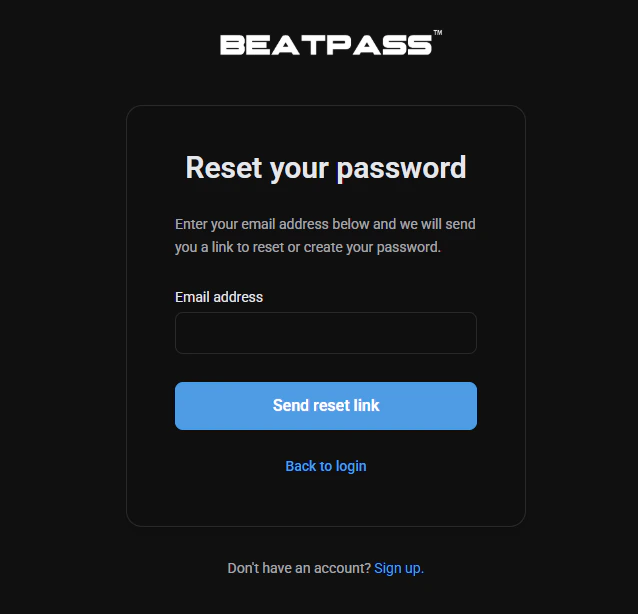
Click Send reset link
Click the Send reset link button. A password reset email will be sent to your address.
Check your email
Look for an email from BeatPass with the subject line about resetting your password. Click the link in the email.
Create your new password
On the password reset page:
- Enter your email address
- Enter your new password
- Confirm your new password
Tips for Creating a Strong Password
- Use at least 8 characters
- Include a mix of uppercase and lowercase letters
- Add numbers and special characters
- Avoid using common words or personal information
- Don’t reuse passwords from other sites
Troubleshooting
I didn't receive the reset email
I didn't receive the reset email
- Check your spam or junk folder
- Make sure you entered the correct email address
- Wait a few minutes — emails can sometimes be delayed
- Try requesting a new reset link
The reset link isn't working
The reset link isn't working
Password reset links expire for security reasons. If your link has expired or isn’t working:
- Return to the forgot password page
- Request a new reset link
- Use the new link immediately
I don't remember which email I used
I don't remember which email I used
Try any email addresses you commonly use. If you still can’t find your account, contact the support team at contact@beatpass.ca for assistance.
I keep getting 'invalid token' errors
I keep getting 'invalid token' errors
This usually means the reset link has expired or has already been used. Request a fresh reset link and use it right away.